
Overview
A delayed screenshot provides a 5-second window to capture the perfect image. This feature is ideal for users who need time to adjust on-screen elements before capturing. It ensures a clean, well-composed screenshot every time.
Steps
-
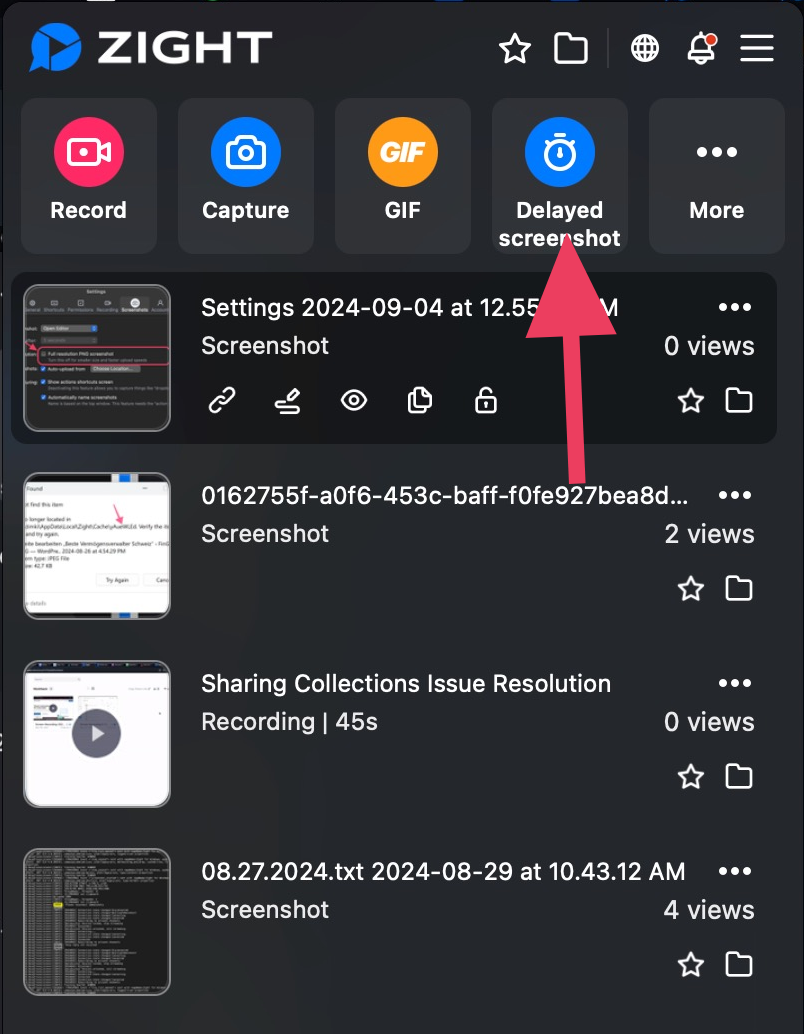
Locate the Delayed Screenshot Option
Open your screenshot application and find the Delayed Screenshot option. This is your starting point for capturing timed screenshots.
-
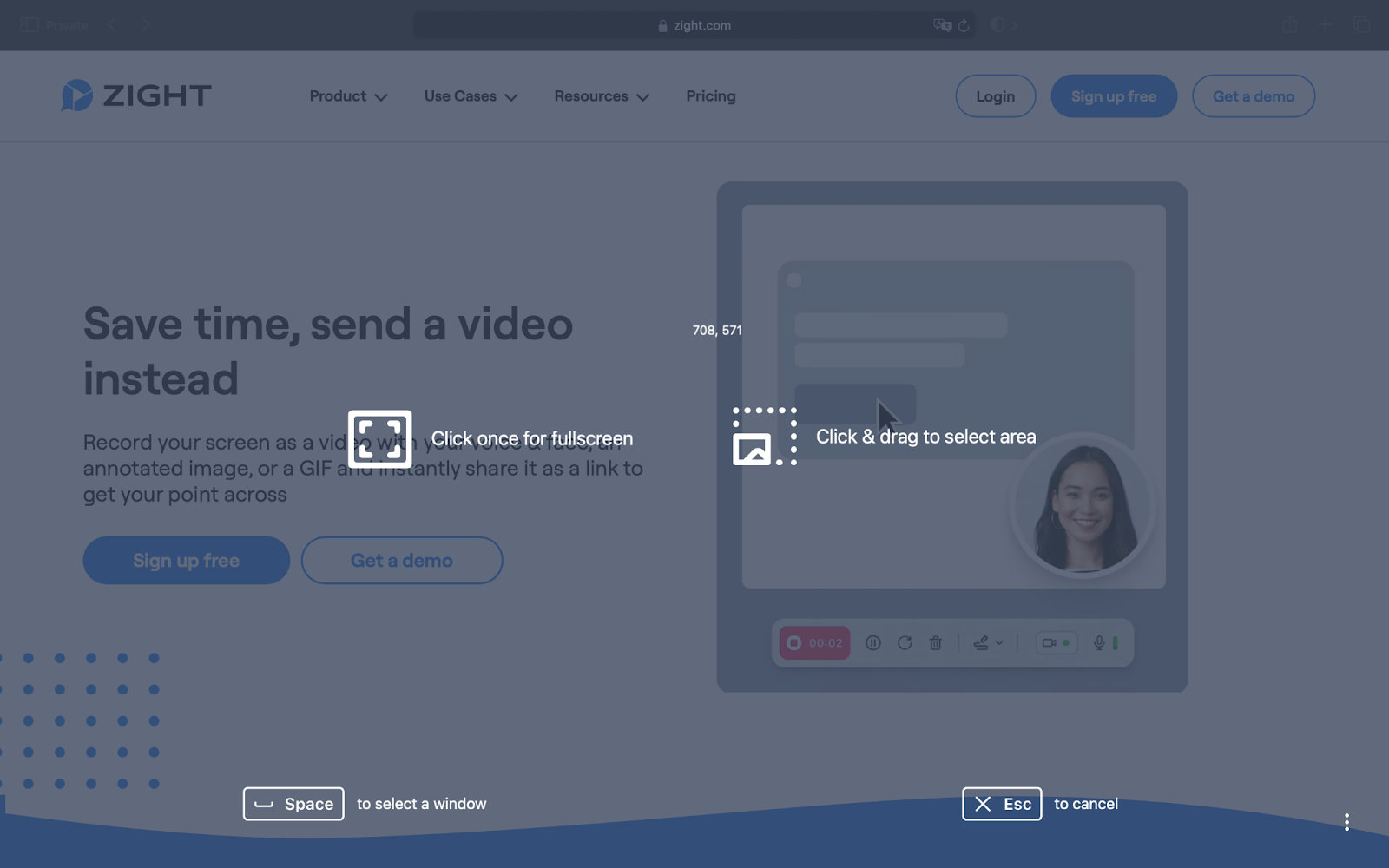
Select Your Screenshot Preferences
Choose the best options for your screenshot needs. If necessary, you can cancel the process at this stage.
-
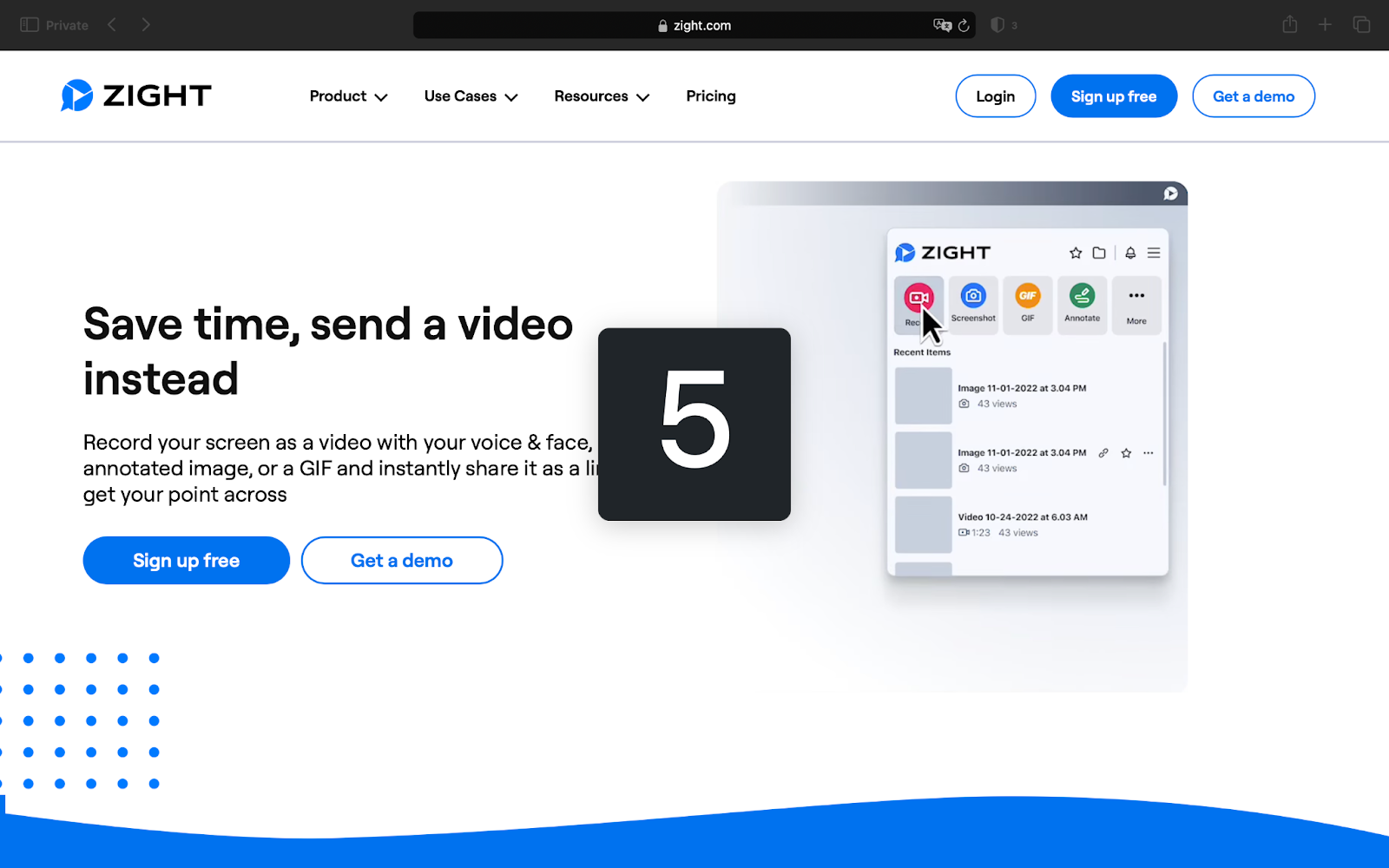
Prepare Your Screen
Once selected, you'll have a few seconds to adjust your screen as needed. Make sure everything is set just right for your capture.
-
Capture the Screenshot
After the delay, your screenshot will be taken automatically, capturing the current state of your screen.
Tips & Best Practices
- Use the delay to ensure all notifications are hidden for a cleaner screenshot.
- Test the feature a few times to become familiar with the timing.
- Adjust your screen's brightness for better clarity in the final image.
Troubleshooting
- Screenshot not capturing → Ensure the app has the necessary permissions enabled.
- Delay not activating → Restart the application and try again.
Related to
Comments
0 comments
Please sign in to leave a comment.