How to Seamlessly Integrate Zight with Zendesk

Sachin Lad
Sachin Lad
  • Updated

Overview

Integrating Zight with Zendesk allows support teams to enhance their ticketing workflow by incorporating screen recordings and visual content directly into support tickets. This integration is designed for support agents looking to resolve customer issues more effectively and efficiently.

  • Streamline support workflows with direct content sharing.
  • Request customer screen recordings easily.
  • Enhance ticket resolution with visual aids.

Video Tutorials

Watch these short videos to see the feature in action:

Video overview: Discover how to integrate Zight with Zendesk for a smoother support experience.

Steps

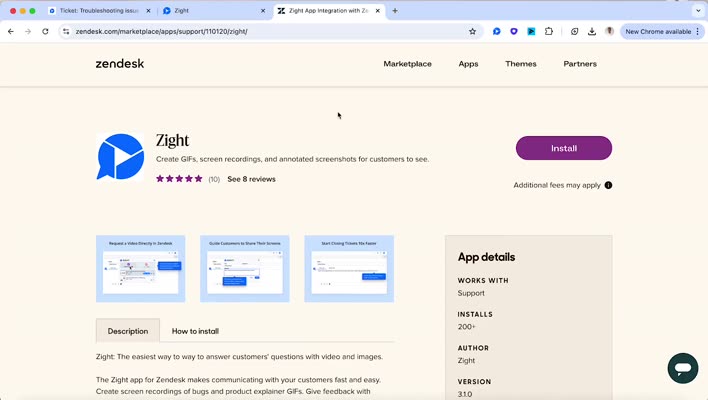
  1. Search for Zight in the Zendesk Marketplace

    Go to the Zendesk marketplace and search for Zight to find the integration.

    Search for Zight in Zendesk Marketplace

  2. Install the Zight App

    Click into the app and select Install to begin the integration process.

  3. Connect Your Zendesk Account

    Choose the Zendesk account or subdomain to connect, and follow the installation prompts.

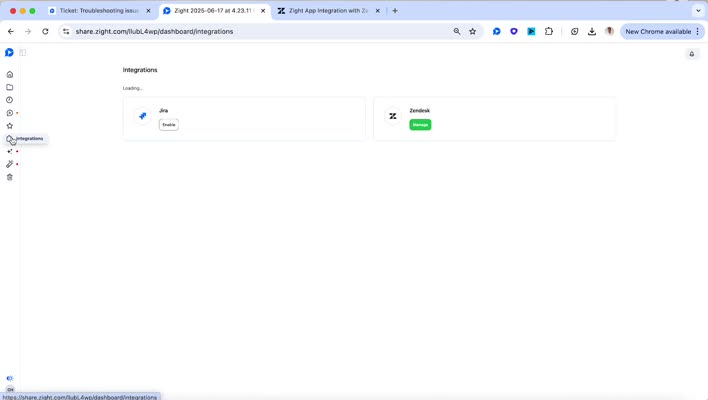
  4. Enable Integrations

    In Zight, navigate to Integrations on the left-hand side.

    Access the Integration Options

  5. Activate the Zendesk Integration

    Find the Zendesk integration tile and click Enable.

    Enable Zendesk Integration

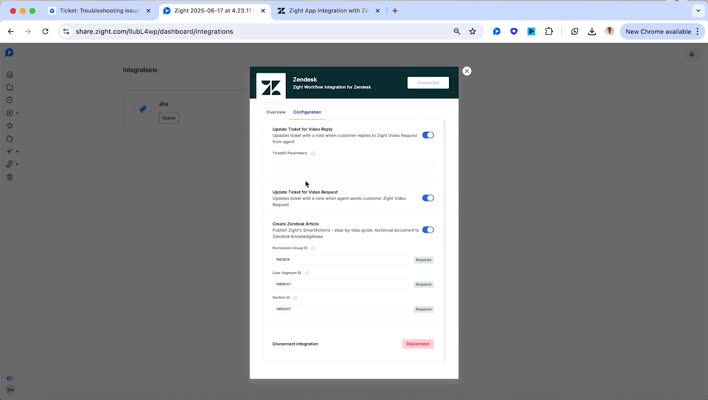
  6. Manage the Integration

    If already connected, the option will display Manage to adjust settings.

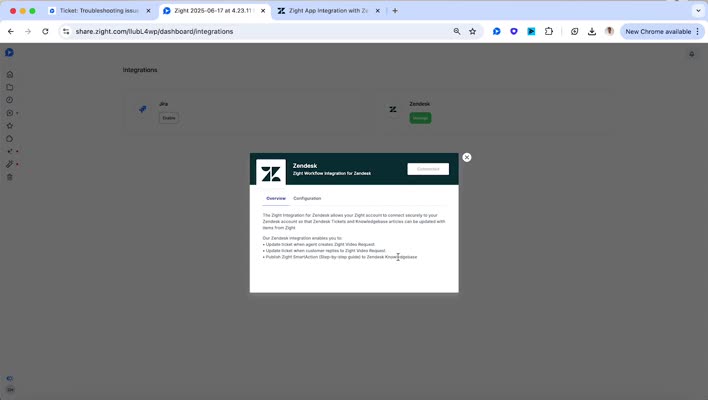
  7. Overview of Integration Features

    Review what the integration enables, such as sharing and requesting visual content.

    Overview of Integration Features

  8. Authorize the Integration

    Enter your Zendesk subdomain and click Authorize to complete the integration.

    Authorize the Integration

  9. Utilize Zight in Zendesk Tickets

    Once authorized, Zight will be integrated into your Zendesk tickets.

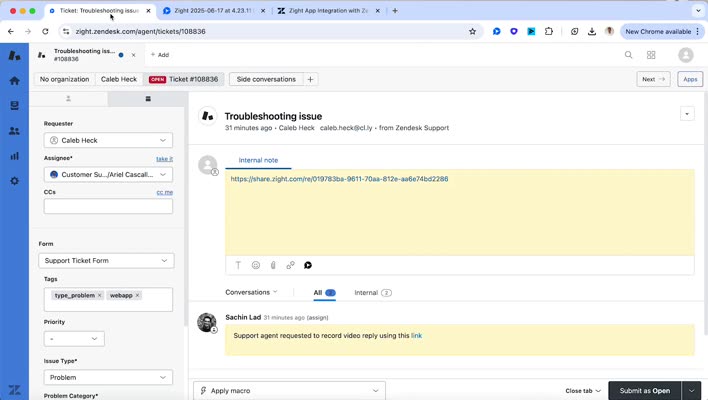
  10. Request and Share Visual Content

    Support agents can now request videos and share screen recordings or screenshots with customers.

    Request and Share Content

Tips & Best Practices

  • Regularly verify that the integration is up to date for optimal performance.
  • Utilize screen recordings to provide clear visual guidance to customers.
  • Encourage customers to use screen recordings to better illustrate their issues.
  • Train your support team on best practices for using Zight within Zendesk.

Troubleshooting

  • Integration not appearing in Zendesk → Ensure the correct subdomain was used during setup.
  • Unable to authorize → Check internet connectivity and try again.
  • Visual content not displaying → Verify that Zight items are correctly shared and not restricted.

Related to

Was this article helpful?

0 out of 0 found this helpful

Have more questions? Submit a request

Comments

0 comments

Article is closed for comments.