
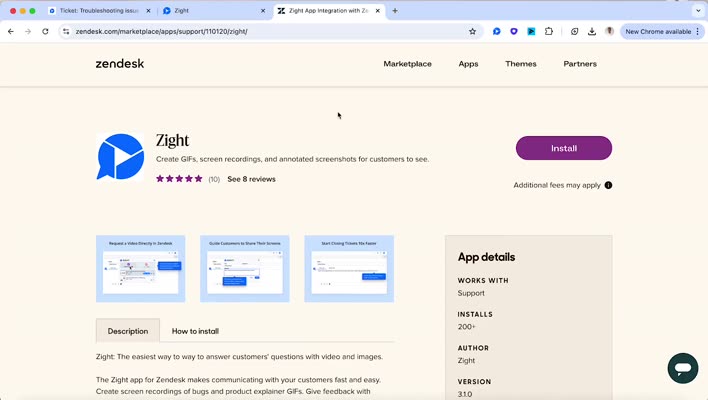
This guide walks admins through installing Zight from the Zendesk Marketplace and authorizing the integration in Zight.
1. Install Zight in Zendesk
- Open the Zendesk Marketplace and search for Zight.
- Open the Zight app listing and select Install.
- Choose the Zendesk account or subdomain you want to connect.
- Follow the prompts to complete installation.
2. Connect Zendesk in Zight
- Sign in to the Zight web app.
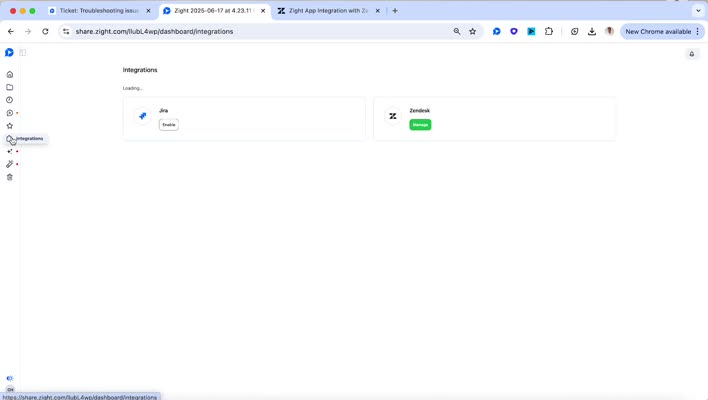
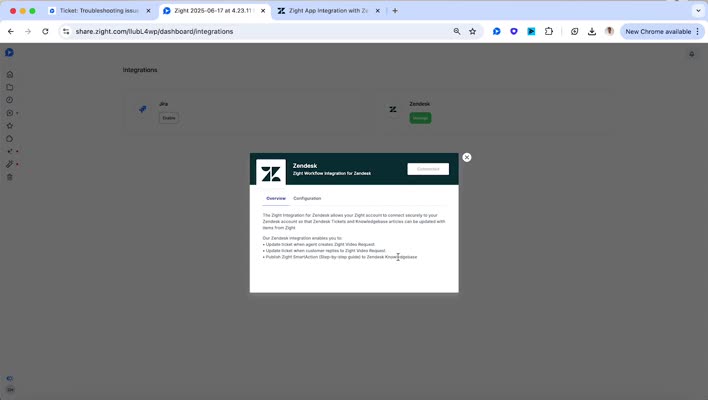
- Select Integrations in the left sidebar.
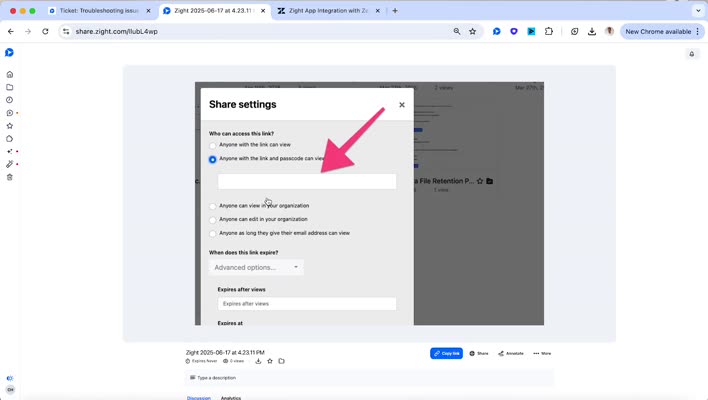
- Find Zendesk and click Enable. If it is already connected, you’ll see Manage instead.
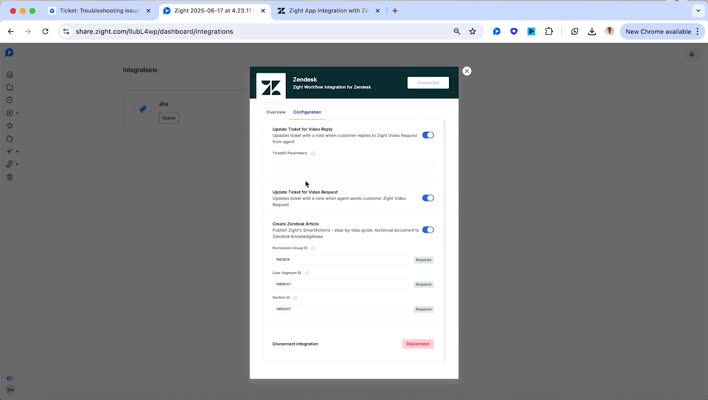
- Enter your Zendesk subdomain.
- Click Authorize to complete the connection.
3. Check your setup
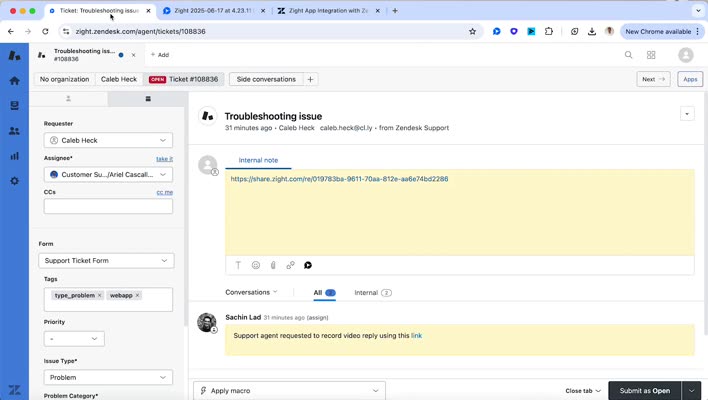
Open a Zendesk ticket and check that Zight is available. Your support team can use the integration to share visual content and request customer recordings.
Manage the connection
In Zight, go to Integrations → Zendesk → Manage to review or adjust the integration settings.
Need help?
If Zight doesn’t appear in Zendesk, check that you used the correct subdomain during setup. If you’re still stuck, contact Zight Support with the step that failed and any error message.
Related to
Comments
0 comments
Article is closed for comments.