
Access & Availability
This Confluence one-click workflow is currently available only for Scale plans and requires the Premium integrations add-on.
Connect Confluence to Zight for seamless one-click page creation. This guide walks you through setting up the Confluence integration, including how to authenticate your site, select the appropriate space key, and automatically generate a new Confluence page from any Zight video or screenshot—complete with step-by-step content and visual context. Perfect for documenting processes, sharing updates, or logging issues.
Step-by-Step Guide to Connect Confluence to Zight
-
Locate the Item
Find an item like a video or a screenshot you just created.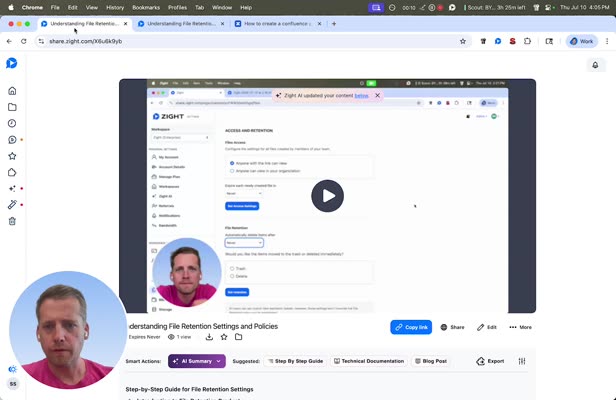
-
Click Integrations
Go to the integrations section, click on manage, and then click connect. -
Accept the Connection
Once the page loads, click Accept.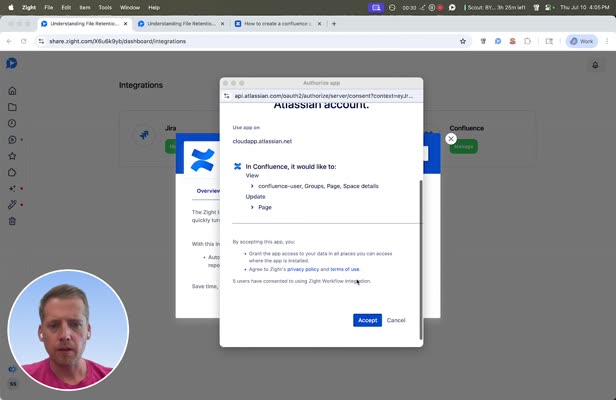
-
Connect Your Site
Click to connect your site.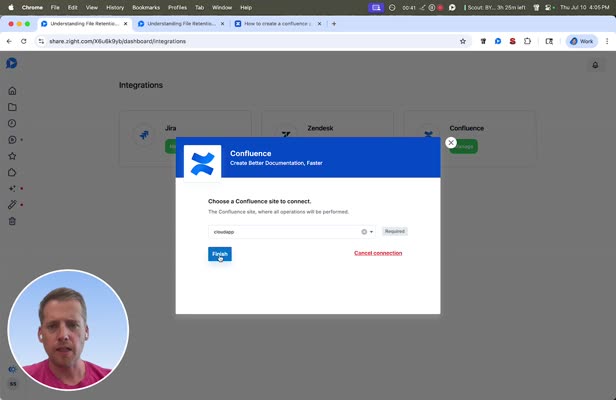
-
Create a Page
Select the option to create a page.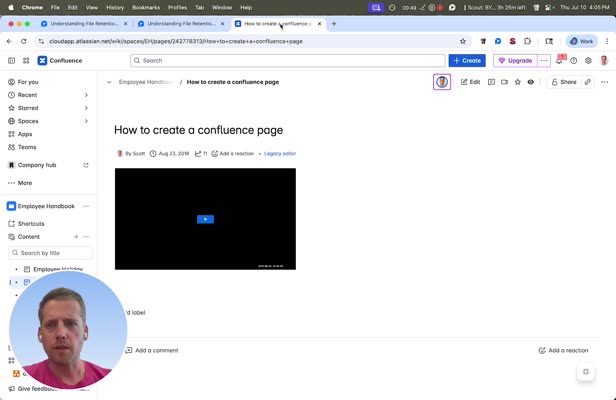
-
Choose Space Key
Go to the space section, choose and copy the space.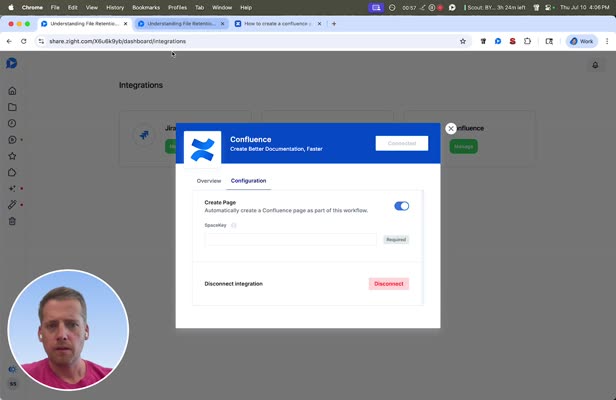
-
Save and Confirm
Save your settings and confirm everything is set.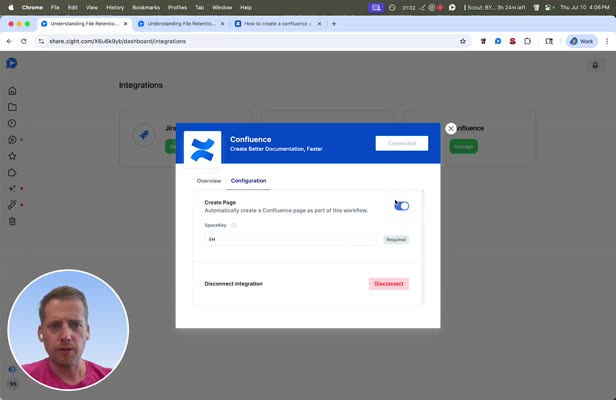
-
Create a One-Click Page
Go back to the video you created and click Export, then Create Confluence Page.
-
Ignore the Bug
Ignore any bugs; the page creation is happening in the background.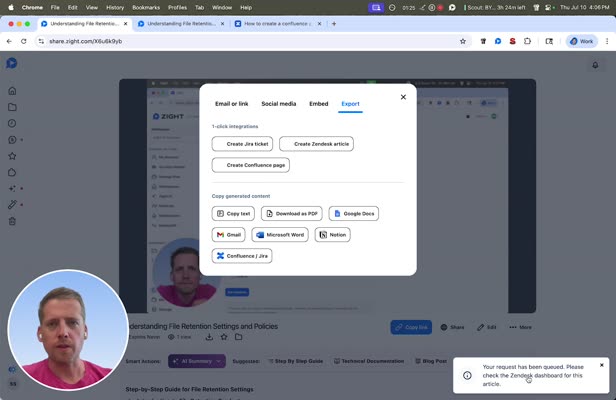
-
Verify Page Creation in Confluence
Search for the newly created page in Confluence using the file name
Related to
Comments
0 comments
Article is closed for comments.