
Overview
Customizing video thumbnails allows you to select a specific frame from your video to represent its content effectively. This feature is beneficial for content creators who want to ensure their videos attract the right audience by displaying an engaging thumbnail.
Video Tutorials
Watch these short videos to see the feature in action:
Video overview: Learn how to select and set a custom thumbnail for your video using simple steps.
Steps
-
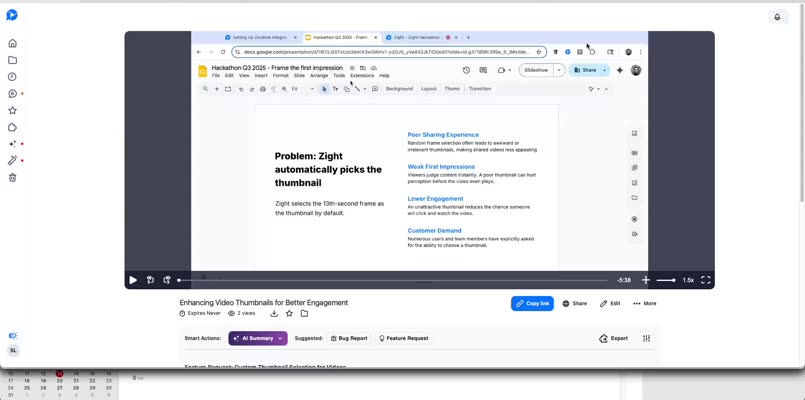
Identify the Thumbnail
Play your video until you find the desired frame. Pause the video at this point.
-
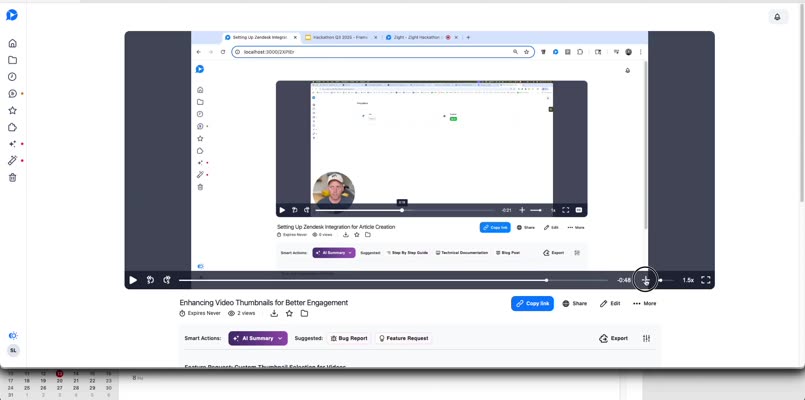
Select the Desired Thumbnail
Click the + icon next to the sound settings on the video playback bar to set the current frame as the custom thumbnail.
-
Capture the Thumbnail
The thumbnail is captured once you click the + icon.
-
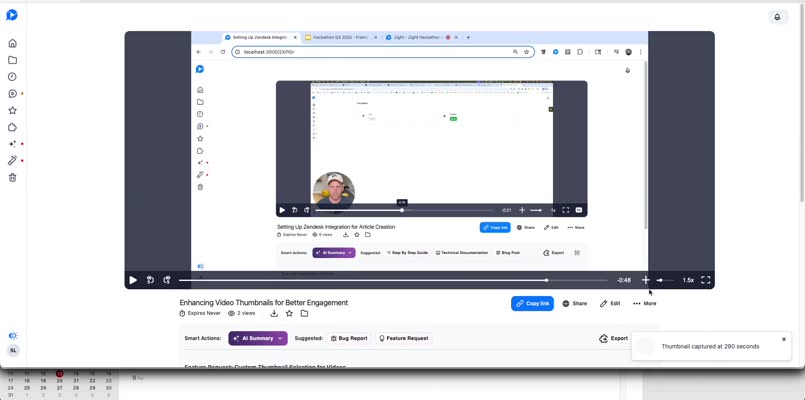
Reload to Confirm
Reload the page to ensure your selected thumbnail is displayed correctly.
-
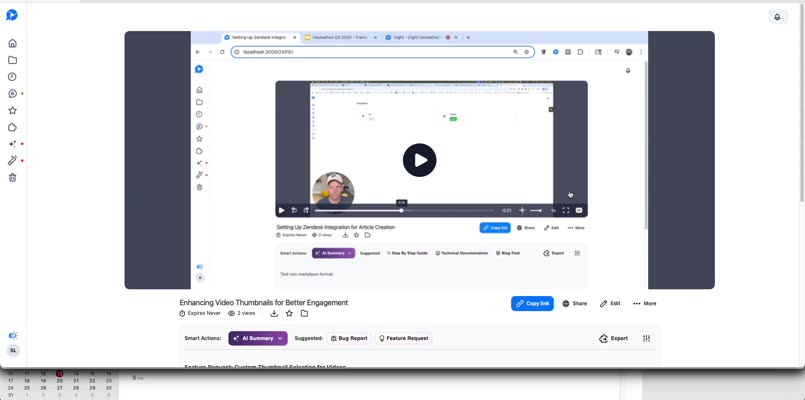
Choose a Preferred Frame
If the current thumbnail is not satisfactory, select another frame following the same process.
Tips & Best Practices
- Choose a visually engaging frame that represents the content of the video well.
- Ensure the thumbnail is clear and not blurry to attract viewers.
- Consider the context of your content when selecting the thumbnail to maintain consistency.
Troubleshooting
- Thumbnail not updating after selection → Ensure you reload the page after capturing the thumbnail to see changes.
- Cannot find the + icon → Make sure the video is paused at the desired frame for the icon to appear.
Related to
Comments
0 comments
Article is closed for comments.